Running Queries
Running Queries
DBeagle is built around running SQL without leaving VS Code. The extension keeps execution close to the editor, adds safety checks when read-only protection is on, and streams results into the DBeagle Results surface.
Before you run
Make sure you have:
- An active DBeagle connection
- A supported editor language such as
sql,trino,postgres,mysql,mssql, ortsql
Ways to run queries
From the editor
- Open a SQL file.
- Place your cursor in a statement, or select the SQL you want to run.
- Press
Cmd+Enteron macOS orCtrl+Enteron Windows and Linux.
From the Command Palette
Run DBeagle: Run Query.
From the Connections tree
Click a table or view to run a preview query.
From a scratch file
Open or create a scratch from the Scratches view, write SQL there, and run it the same way you would from a normal editor.
Selection behavior
By default, if text is selected, DBeagle runs only the selection.
Control this with:
dbeagle.query.executeOnSelection = trueto prefer the current selectiondbeagle.query.executeOnSelection = falseto always run the full editor content
Multi-statement execution
DBeagle can split SQL on statement boundaries and execute statements in order:
SELECT * FROM users LIMIT 10;SELECT COUNT(*) FROM orders;SELECT id, name FROM products WHERE active = true;If you run multiple statements, DBeagle tracks which statement produced the current result set and surfaces that in the result details.
Query Parameters
Named $parameters are supported in the current file or selection:
SELECT * FROM users WHERE status = $active;SELECT * FROM orders WHERE date >= $start_date AND date <= $end_date;When DBeagle detects parameters, the Parameters view prompts you for values before execution. See Query Parameters for the full workflow.
Safety checks
When read-only protection is enabled, DBeagle validates the SQL before it reaches the driver. Mutating statements are blocked with an editor diagnostic and a clear error message.
If you switch into write mode first, DBeagle stops blocking those statements and sends them through normally.
What happens during execution
The high-level flow is:
- DBeagle resolves the active SQL from the file or selection.
- The parser splits statements and determines the SQL dialect.
- Read-only validation runs when protection is enabled.
- The active driver executes the statement.
- Rows stream into the native result store.
- The result grid appears as soon as a page is ready.
- Once the result finalizes, full sort, filter, export, and chart interactions unlock.
Query cancellation
DBeagle supports cancellation while a query is running:
- From the cancel affordance in VS Code’s progress notification
- From the
Cancelbutton in the result toolbar while the session is still streaming
Cancellation behavior depends on the connected driver, but the workflow stays consistent from the user’s point of view.
Diagnostics and feedback
DBeagle shows inline diagnostics for:
- Parse errors with line and column context
- Read-only violations when blocked
- Driver execution errors
- Query annotations and code lenses on executed statements
Query history is also recorded internally for the most recent executions. See Query History.
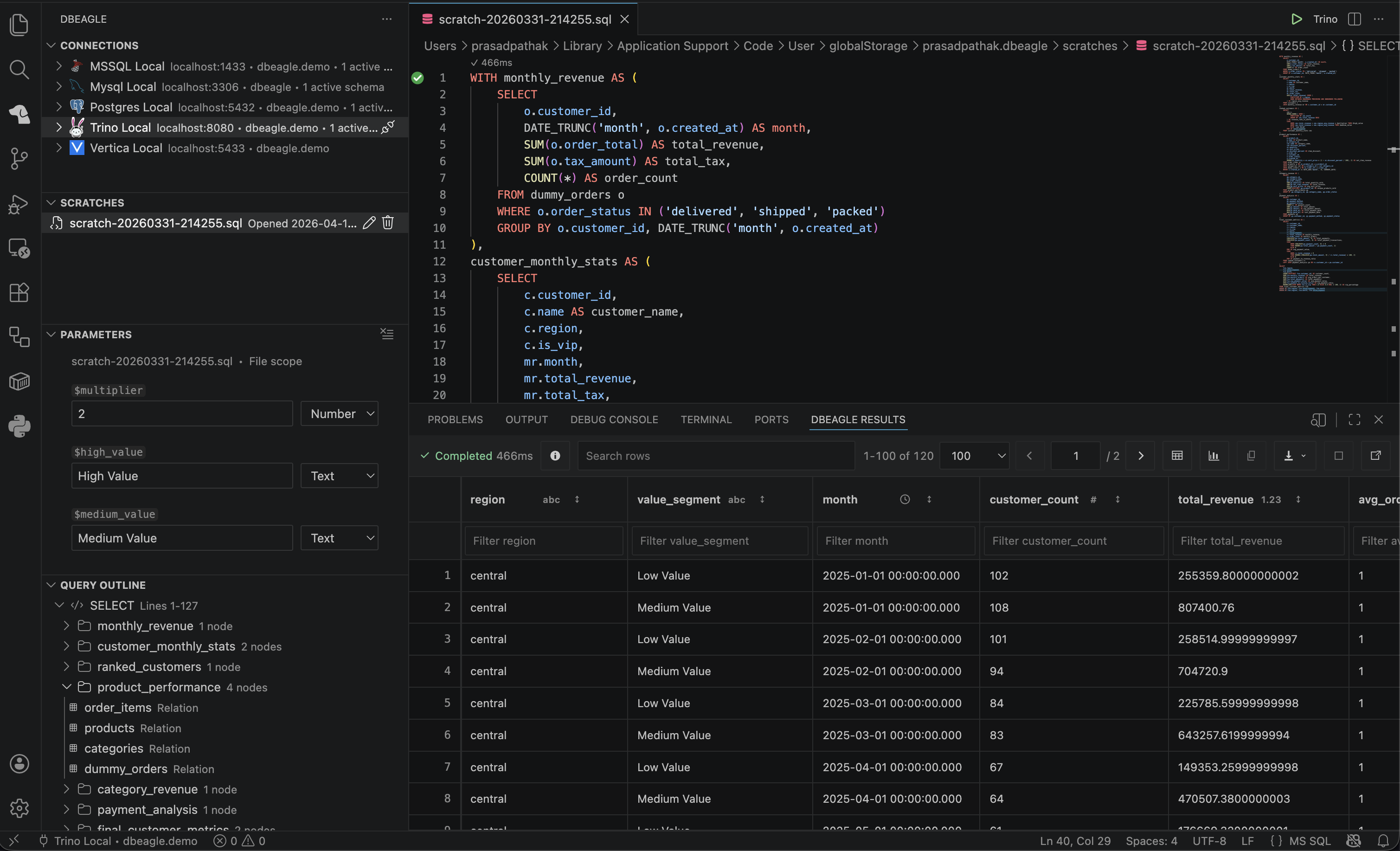
Running SQL inside VS Code with DBeagle’s editor-adjacent workflow.
Related settings
dbeagle.query.executeOnSelectiondbeagle.query.timeoutdbeagle.query.blockMutations